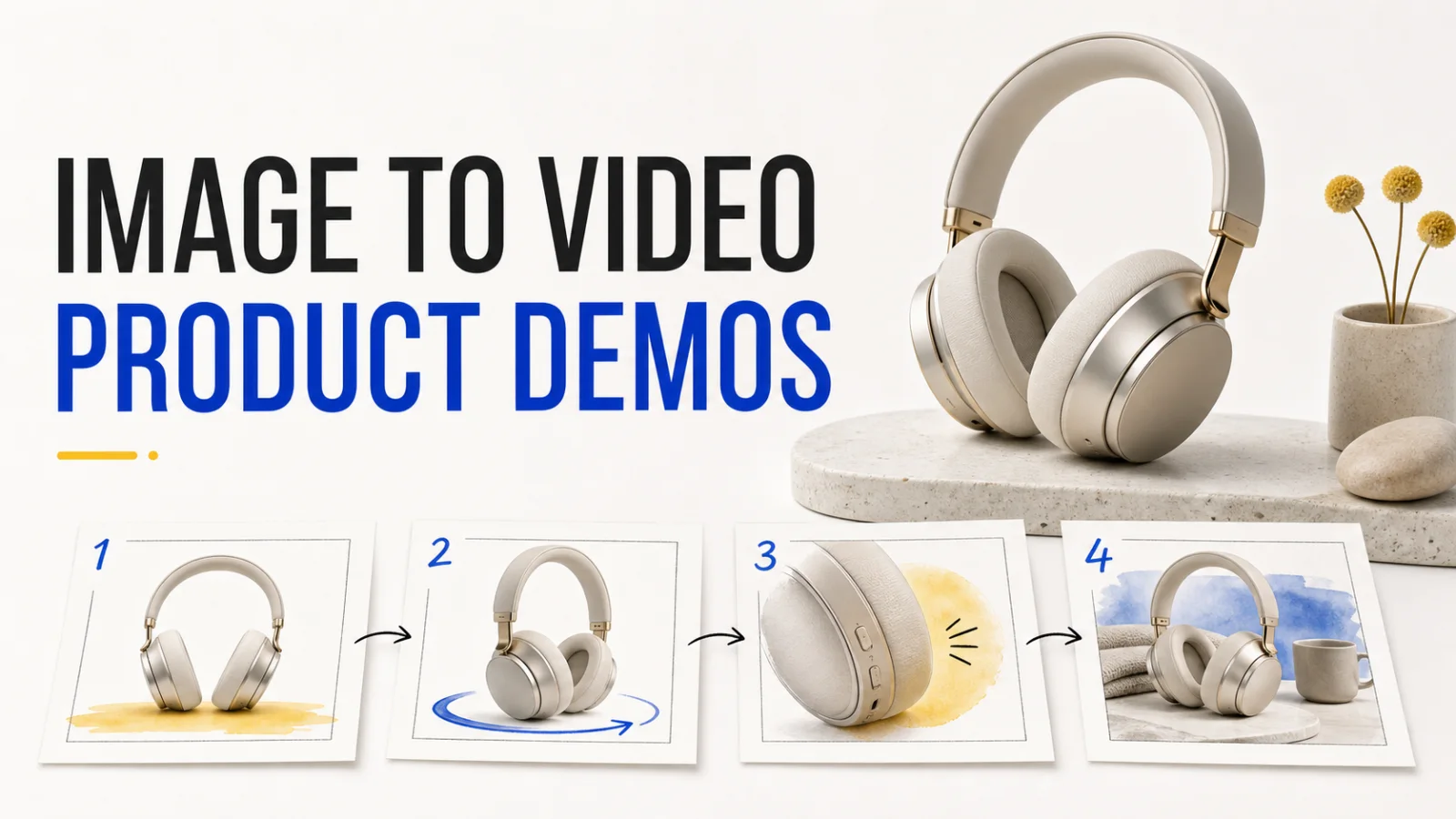
Product demo generators fail in a specific way: they create a convincing moving shot and quietly change the thing you need to sell. A bottle label shifts, a phone bends, a package loses its cap, or a hand covers the key feature.
The best image-to-video generator depends on the demo you need to approve. A polished eight-second hero shot has different requirements from a multi-scene launch video, a vertical social cut, or a batch generated through an API. This list compares seven useful options by product identity, reference control, output, audio, revision cost, and day-to-day usability.
What product demos need from image-to-video
A product demo starts with a visual anchor: a packshot, product render, approved lifestyle image, or storyboard frame. The generator must add motion without losing the anchor. It must also give you enough control to create a usable clip rather than an attractive test.
Use these five checks before judging a tool:
- Identity control: Can the model keep the product shape, materials, colors, label, and important details across motion?
- Motion direction: Can you describe camera movement, object movement, timing, and interaction without rewriting the entire prompt for each attempt?
- Reference depth: Can you add a person, environment, second product angle, first frame, last frame, or video reference when one image is not enough?
- Output fit: Can the generator produce the duration, aspect ratio, resolution, and audio format your channel needs?
- Revision cost: How much context disappears when you request one change, and how many full generations do you need before approval?
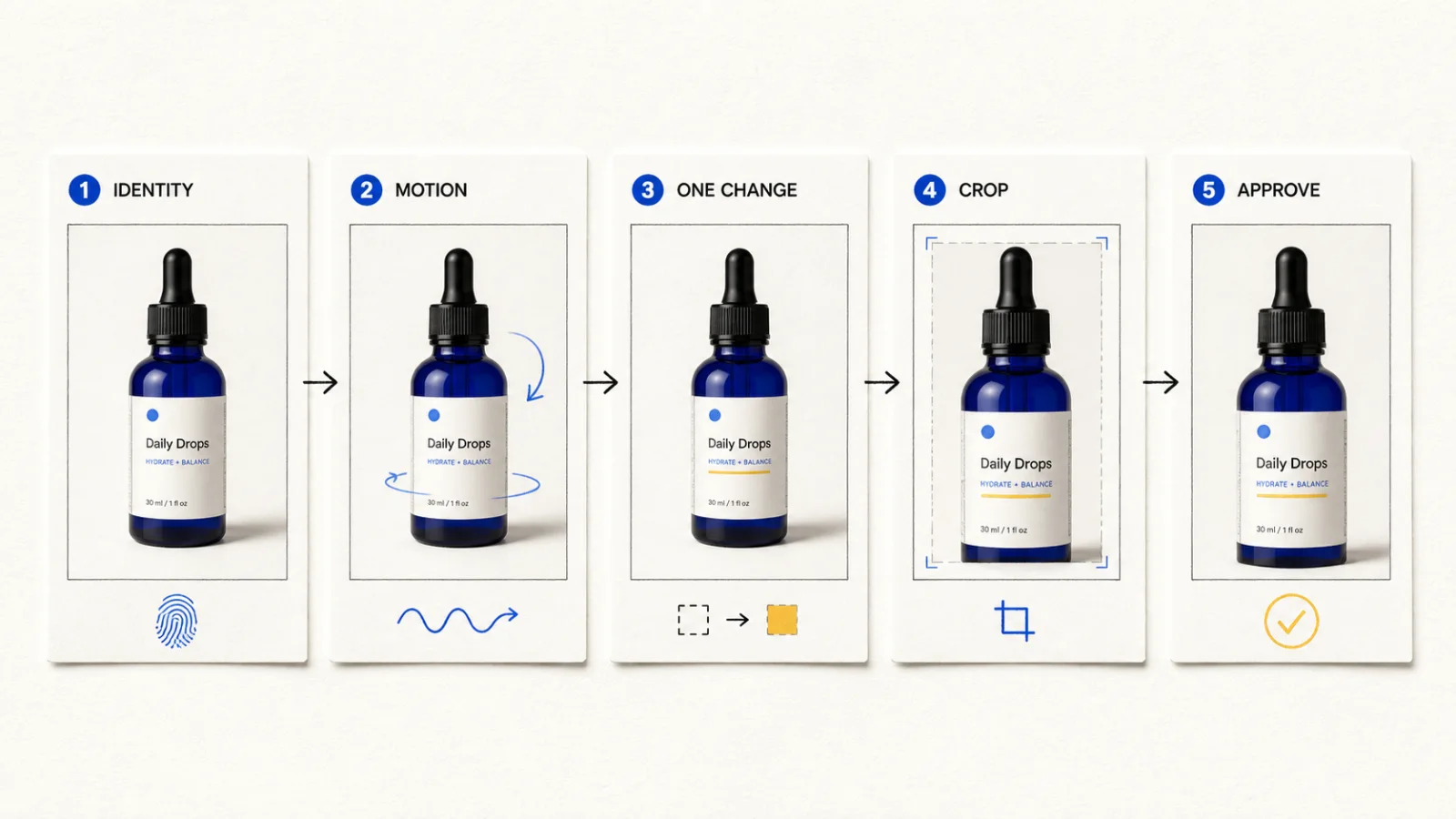
The first frame shows visual quality. The second revision shows whether the tool belongs in production.
Best image-to-video generators at a glance
| Generator | Strong fit | Reference control | Output and audio | Revision cost |
|---|---|---|---|---|
| Banana AI | Comparing model routes | I2V and reference-to-video vary by model | Ratios and audio vary by route | Switching is easy; limits still vary |
| Runway | Repeatable API batches | Gen-4.5 and other model-specific controls | Duration, ratio, resolution, and audio vary | Track per-second usage and reruns |
| Kling AI | Product, person, and sound interactions | Multi-image, elements, and extension | 720p, 1080p, or 4K with audio options | More scene variables need more review |
| Google Veo 3.1 | Short audio-aware hero shots | First/last frames and up to three images | Eight seconds, 720p to 4K, 16:9 or 9:16 | Late errors can require a full rerun |
| Luma Ray3.2 | Keyframe-led variants | Up to 16 keyframes, Modify, Swap, and Reframe | 1080p, HDR, and EXR; no native I2V audio | Control improves; sound needs a separate pass |
| Adobe Firefly | Brand review and model choice | Custom images plus partner models | Camera and motion controls vary by model | Rights and model choices need review |
| Seedance 2.0 | Multimodal audio-video scenes | Text, image, audio, and video references | Banana AI: 4 to 15 seconds, 480p to 1080p, audio control | Conflicting references raise rerun risk |
1. Banana AI: compare model routes without moving the source asset
Banana AI is useful when the hard decision is which model route should receive the next attempt. Its current video catalog includes Veo 3.1, Kling 3.0, Seedance 2.0, Grok Imagine, and Gemini Omni Video paths. Each model keeps its own duration, ratio, resolution, input, audio, and credit rules.
Keep one approved product image, run the same brief through several routes, and compare identity, motion, and output fit. Banana AI lowers the cost of switching between routes, but it does not make provider limits identical. A result from one model does not predict a result from another.
Start with the Banana AI video generator when you need to compare those paths. Use the Banana AI image generator first if the approved packshot or campaign frame still needs cleanup before animation.
Choose Banana AI when: you want a single place to test several current image-to-video routes, preserve the source asset, and compare revision behavior before standardizing.
2. Runway: repeatable API and studio production
Runway fits teams that need repeatable generation rather than a one-off clip. Its current developer catalog includes Gen-4.5 and other video models, with model-specific image-to-video requests and explicit ratio and duration settings. That structure suits product launches, regional variants, and scheduled batches.
Record the source image, prompt, model, ratio, duration, output, and reruns for each attempt. For a deeper model choice, see the Veo 3.1, Runway Gen-4.5, and Kling 3.0 comparison.
Choose Runway when: an API, model selection, and repeatable batch records matter as much as the look of the clip.
3. Kling AI: product interaction, elements, and native audio
Kling 3.0 covers image-to-video, multi-image-to-video, multi-element editing, video extension, element references, smart storyboarding, and native audio-video generation. That combination suits a demo where a product opens, rotates, interacts with a person, or moves through several planned shots.
Use the product image as the identity anchor, then add people or environments only when they have a visible role. Kling offers 720p, 1080p, and 4K paths, but extra elements create more variables. Test product-only motion before adding hands, props, or dialogue, and inspect labels and contact shadows after each change.
Choose Kling AI when: the demo depends on interaction, native sound, multiple references, or a longer shot plan than a single camera move.
4. Google Veo 3.1: eight-second hero shots with native audio
Veo 3.1 generates eight-second videos at 720p, 1080p, or 4K, with native audio and landscape or portrait framing. It accepts first and last frames plus up to three reference images, giving a short product scene more structure than a single prompt.
Use it for a device powering on, a package turning toward the camera, or a beverage entering a lifestyle scene. The fixed duration keeps review compact, but a late label error usually means regenerating the full clip. Treat longer narratives as a sequence of approved shots.
Choose Veo 3.1 when: you need a short hero shot with native audio, strong framing options, and first-to-last-frame direction.
5. Luma Ray3.2: keyframes, product swaps, and clean variants
Luma Ray3.2 fits art direction that depends on timing and controlled variants. Its toolset includes image-to-video, Modify Video, Reframe, Product Swap, Global Campaigns, and multi-keyframe direction with up to 16 keyframes. It supports 1080p, HDR, and EXR paths.
Image-to-video produces five- or ten-second clips without native audio, so you can approve product motion before a separate sound pass. Modify Video can preserve original audio for footage-led changes. Start with sharp, steady source footage because shake, blur, darkness, and overlapping subjects make modification harder.
Choose Luma Ray3.2 when: the shot needs keyframe timing, campaign variants, product swaps, or a high-resolution finishing path more than built-in sound.
6. Adobe Firefly: a brand review surface with partner models
Adobe Firefly brings image-to-video, editing, and model selection into one creative workspace. Its current flow accepts a custom image, offers camera and motion controls, and lets teams compare the Firefly Video Model with partner models such as Veo 3.1, Luma Ray3, Kling 3.0, and Runway Gen-4.5.
That helps during brand review because one product reference can travel through several visual treatments. Firefly's own model uses commercially safer training sources, while partner terms and output rules remain separate. Record the selected model, not only the workspace, in the approval brief.
Choose Adobe Firefly when: creative review, Adobe editing, and side-by-side model selection matter more than a single provider's narrow control surface.
7. Seedance 2.0: multimodal references for richer scenes
Seedance 2.0 uses text, image, audio, and video inputs in one audio-video generation path. That helps when a demo needs a product reference, storyboard, sound cue, and video reference to describe one scene.
Banana AI's current entry supports four- to fifteen-second image-to-video clips, 480p to 1080p output, several ratios, and audio control. Its reference-to-video entry accepts up to nine images, three videos, and three audio references. Give one image the identity role, label each extra reference, and check packaging text before refining sound or timing.
Choose Seedance 2.0 when: a product demo needs coordinated image, video, audio, and text references rather than one starting image.
Match the generator to the demo
The quickest choice comes from the approval problem, not the model leaderboard.
| Demo requirement | Start with | Why it fits | Main watchout |
|---|---|---|---|
| Compare motion from one approved still | Banana AI | Test current routes without moving the source | Read each model's limits first |
| Build repeatable API batches | Runway | Record model, ratio, duration, and request settings | Track usage and reruns |
| Show product, person, and sound | Kling AI | Multi-element references and native audio fit interaction | Extra references can cause drift |
| Produce an eight-second hero | Google Veo 3.1 | Audio, first/last frames, and 4K fit a self-contained shot | A late error can require regeneration |
| Direct timing across variants | Luma Ray3.2 | Keyframes, Product Swap, and Reframe guide variants | Add audio in finishing |
| Compare models during brand review | Adobe Firefly | Adobe and partner routes share one review surface | Confirm the selected model's terms |
| Combine product, storyboard, audio, and video | Seedance 2.0 | Multimodal input covers a complex brief | Remove conflicting references |
Run a five-pass revision test
Before you adopt a generator, run the same small test through the finalists. Use one approved product image, one simple motion, and one target channel.
- Generate a five- to eight-second landscape clip with the product centered and the label visible.
- Request one isolated change, such as a slower camera move or a new background.
- Request a second change that affects an unrelated area, such as lighting or a supporting prop.
- Create the portrait crop or alternate frame only after the landscape version preserves the product.
- Record output quality, audio behavior, generation time, credit use, and the number of full reruns.
Check these details at full size:
- Product silhouette, materials, cap, edges, and label text.
- Hands, props, and contact shadows around the product.
- Camera movement, object motion, and the final frame.
- Safe areas for captions, subtitles, and platform crops.
- Audio sync, voice or music rights, resolution, and downloadable format.
The best generator is the one that keeps the approved details intact after the second change. A beautiful first clip with expensive full reruns may lose to a less dramatic model that preserves the product through review.
FAQ
Which image-to-video generator is best for product demos?
There is no single best choice for each product demo. Use Banana AI when model comparison reduces your switching cost, Runway for repeatable API production, Kling for interaction and native audio, Veo 3.1 for an eight-second hero, Luma for keyframe-led direction, Firefly for brand review, and Seedance 2.0 for multimodal references.
Which generator preserves product identity best?
Reference control matters more than the brand name. Start with one sharp identity anchor, keep the motion simple, and test one isolated revision. Multi-image, keyframe, first-frame, last-frame, and element-reference controls can reduce drift, but you still need to inspect labels, geometry, and materials.
Which image-to-video tools generate audio?
Veo 3.1, Kling 3.0, and Seedance 2.0 include audio-oriented generation paths. Luma Ray3.2 image-to-video does not add native audio, while Adobe Firefly depends on the model selected inside its workspace. Confirm the current route before planning a voice, music, or sound-effects pass.
Is Banana AI an image-to-video model?
Banana AI is a creative workspace that exposes several current model routes. The selected provider model determines the available input types, durations, resolutions, aspect ratios, audio controls, and credit usage. Review the model entry before starting a batch, and check Banana AI pricing for the current product-level usage terms.
The Banana AI video generator is a sensible starting point when you want to compare routes with the same product reference. Standardize on one generator only after it passes the second-revision test.